
8.5 Interactive Analysis Workbench (INK) User Guide
8.5.1 Introduction to Interactive Analysis Workbench
The Interactive Analysis Workbench (INK), developed by the Computing Center of the Institute of High Energy Physics (IHEP), provides users with secure and convenient interactive analysis tools. It encapsulates user interactions as specialized jobs and delivers web-based interactive operations. Current features include applications like vscode, jupyter, vnc, and services such as file operations, ENode, and Eshell.
8.5.2 Quick Start
8.5.2.1 Login
Users with a cluster account can directly access http://ink.ihep.ac.cn and log in via their IHEP SSO account. If you do not have a cluster account, please refer to 2.1 User Account Application.
8.5.2.2 Homepage
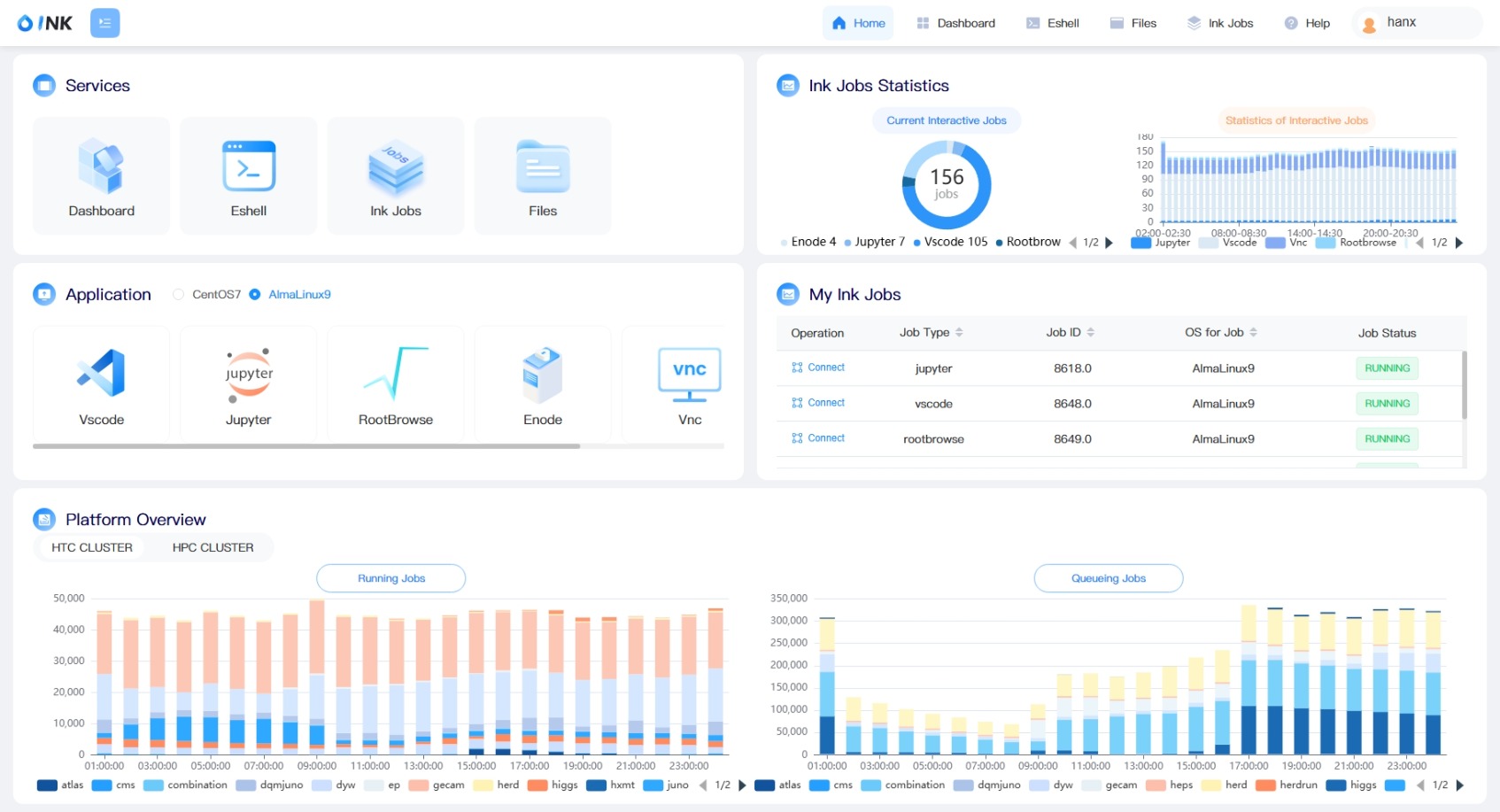
After successful login, you will enter the INK homepage, which includes five sections: Services, User Info, Application, Interactive Jobs, and Platform Overview, providing basic services, interactive applications, and system runtime information.
8.5.2.3 File Operations
Method 1: Click the Files icon in the top-right corner of the homepage.

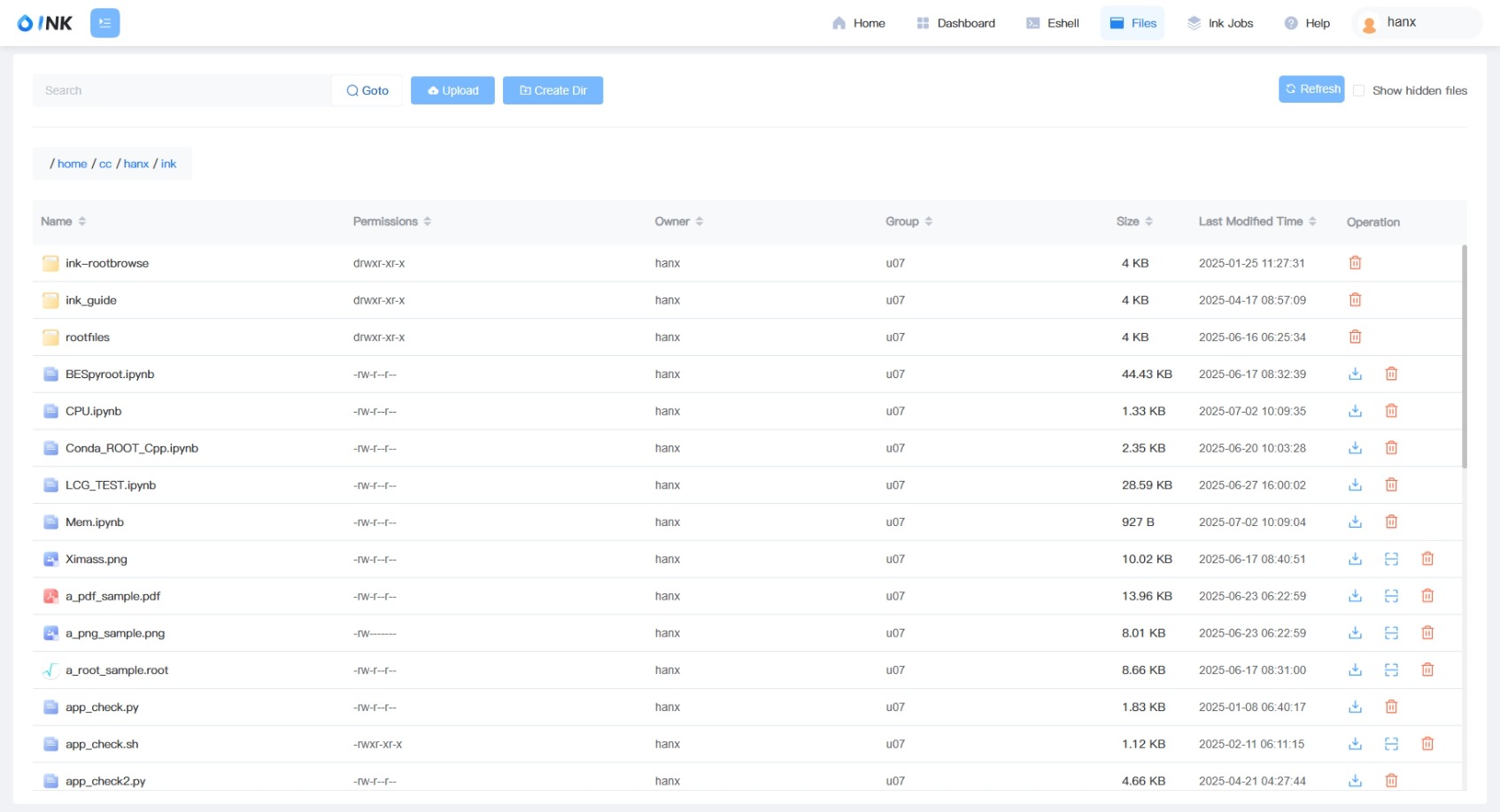
- Path navigation via manual input or folder clicks
- Toggle hidden file visibility
- File upload/download/delete operations on the cluster
- Online preview for PNG / PDF / root / fits files.
8.5.2.4 Interactive Applications
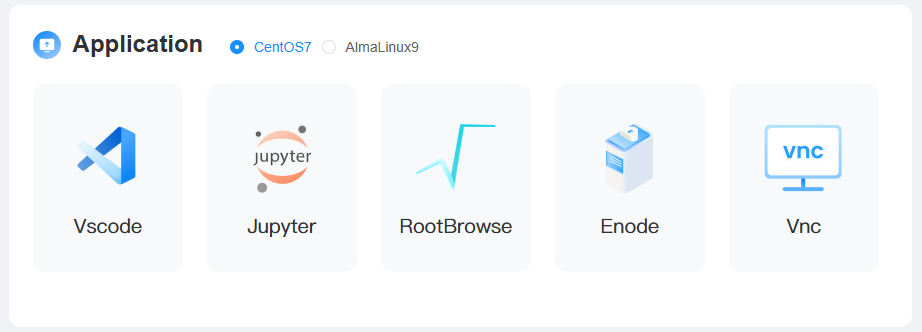
INK offers web-based interactive applications like vscode, jupyter, rootbrowse, and vnc.
Note: Users in the physics group may choose between CentOS7 or AlmaLinux 9 OS. Non-physics users use AlmaLinux 9 by default. CentOS7 has older software versions; use AlmaLinux 9 unless necessary.
Steps:
Step 1 Click the application icon under Application to submit a job. A job list will pop up.
Step 2 The Jobs page displays all your submitted interactive computing jobs. And a star (⭐) marks the job you recently selected on the homepage for quick identification. Click Connect when the job status becomes available. Also, you can check the job log by clicking the Detail button.
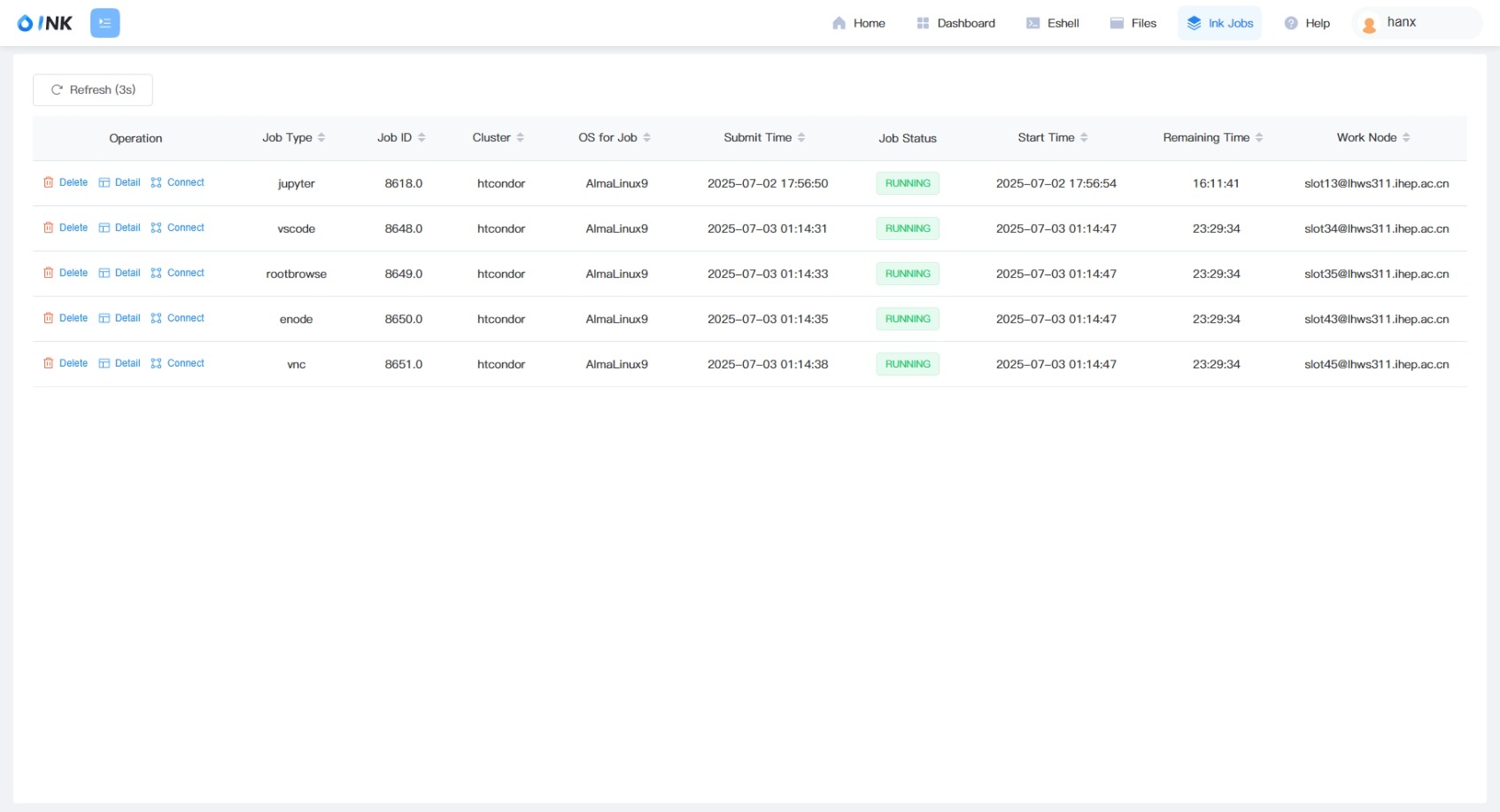
Note 1: The Connect button appears only when the application is ready. Use Refresh to update the status.
Note 2: For VNC, copy the auto-generated password from the job's Detail page.
8.5.2.5 User Dashboard
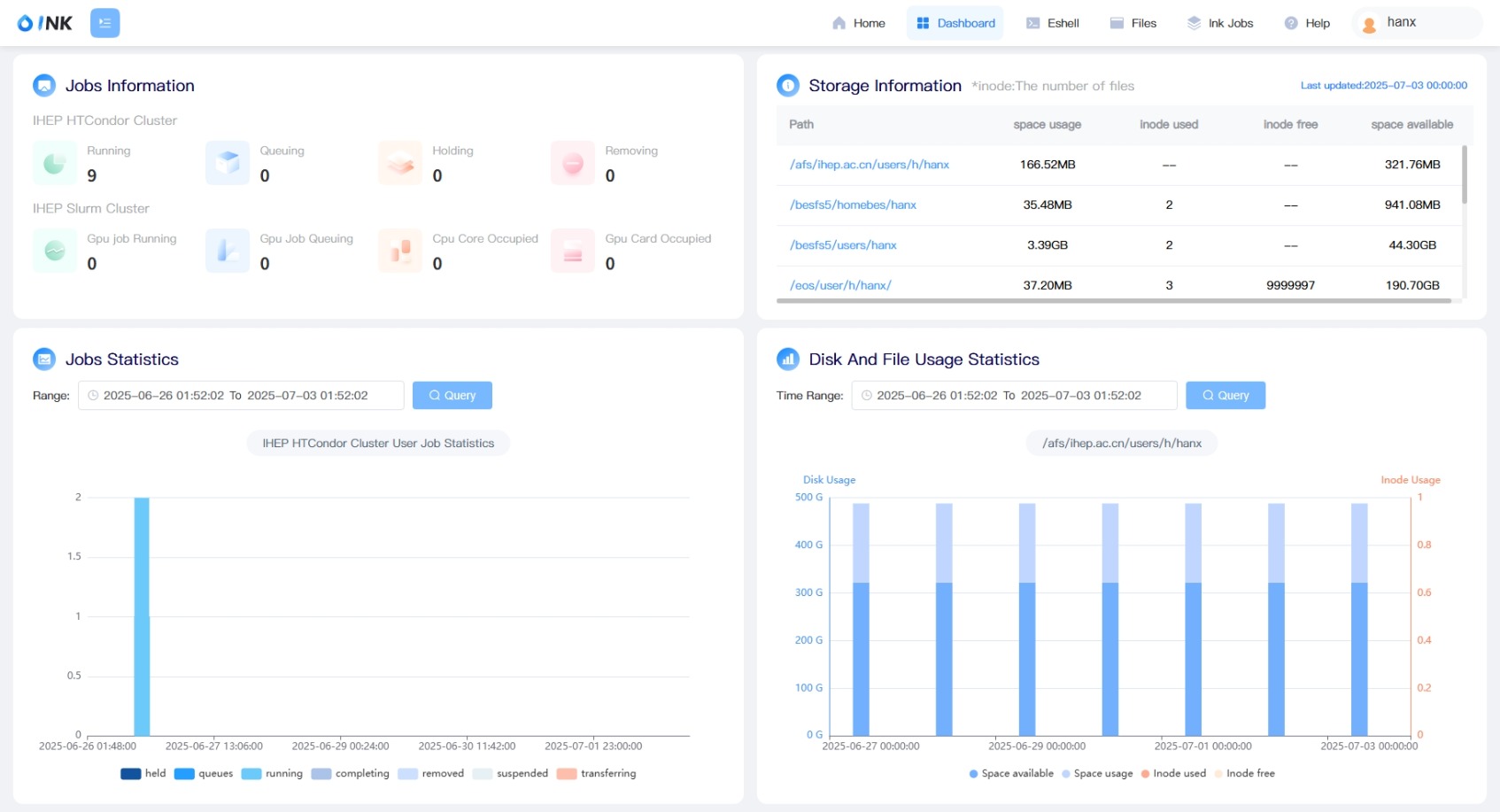
Displays cluster job status and storage usage. Access via the Dashboard icon in the top-right corner or the Services section.
8.5.2.6 EShell
A web-based terminal for accessing login nodes. Click the EShell icon in the top-right corner or the Services section.
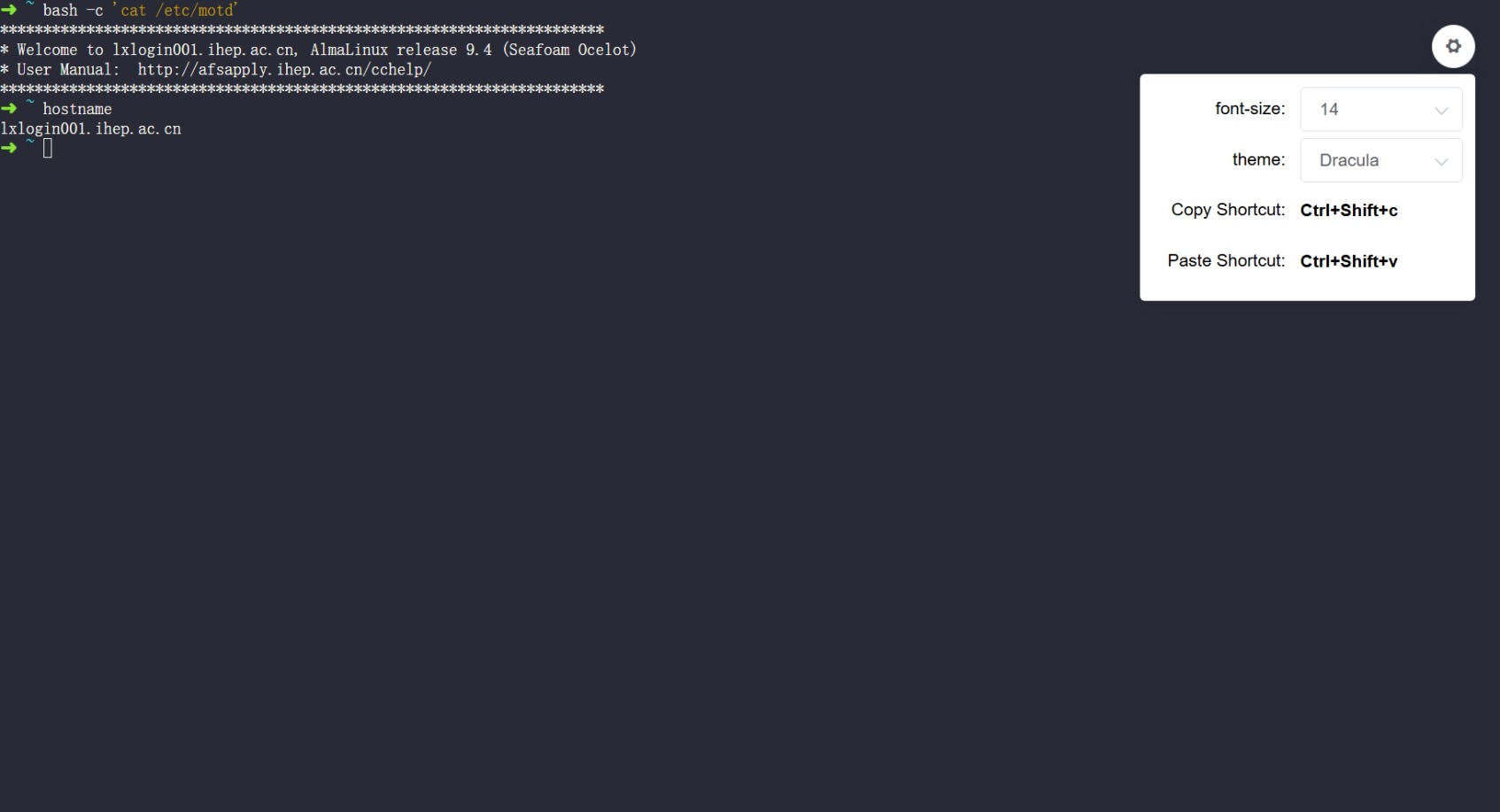
You can use Ctrl + Shift + C to copy and Ctrl + Shift + V to paste. You can also click the settings button in the top right corner to adjust the font size and theme color.
8.5.2.7 Mattermost Channel
A communication platform for cluster users: https://mattermost.ihep.ac.cn/signup_user_complete/?id=k3rkdozw43frxf4bgtgeho7wqw&md=link&sbr=su
8.5.3 Interactive Application Details
8.5.3.1 VSCode
A code editor supporting C/C++, Python, Java, JavaScript, etc. Users can edit files, submit jobs, and view results. INK runs VS Code on computing nodes using the code-server service. After clicking "Connect", the web-based VS Code interface will open. Some browser extensions may interfere with key inputs. It is recommended to disable such plugins on ink.ihep.ac.cn.
Plugins & Internet Access: Compute nodes have internet access. Install plugins directly via the marketplace. Limitations: Since code-server is an SSH-based VS Code, some plugins (e.g., GitHub Copilot, Remote SSH, vscode-pdf) are unsupported. If you need unsupported features, consider using ENode instead.
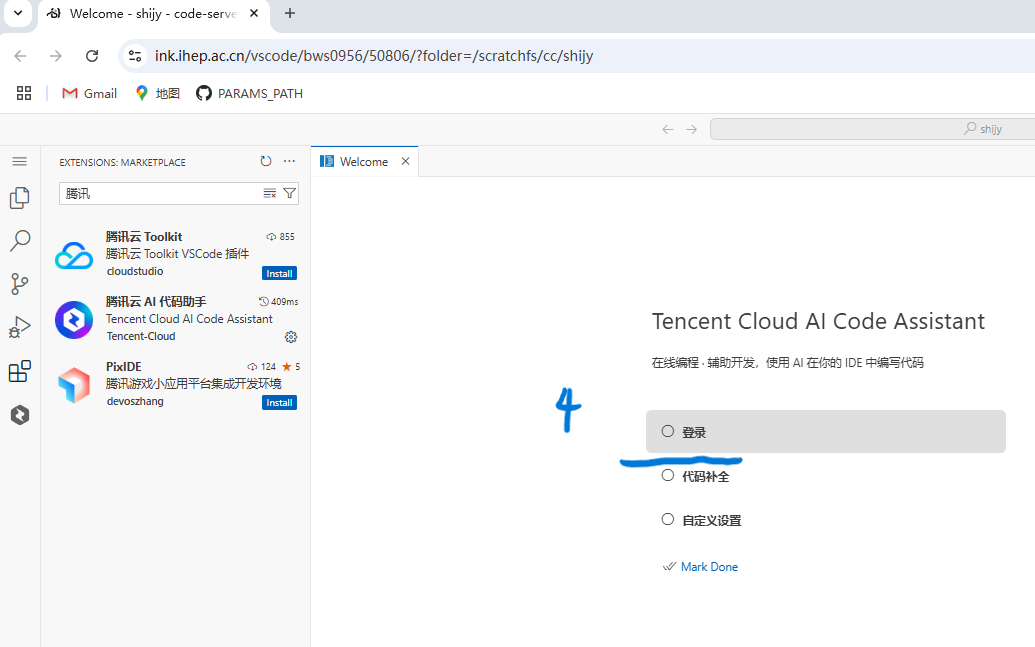
AI Code Assistant: INK supports AI-assisted coding to improve research efficiency. Many VS Code plugins provide this functionality (Example: Tencent Cloud AI Code Assistant):
- Step 1-3: Open the Extensions panel in VS Code. Install the plugin by searching
Tencent Cloud AI Code Assistantor腾讯云ai代码助手.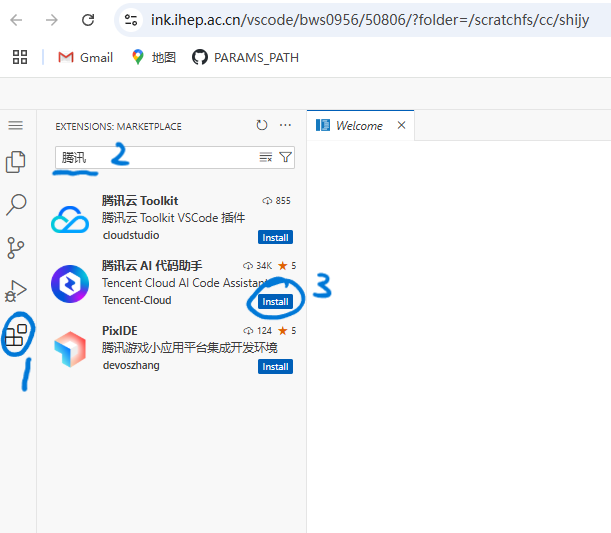
- Step 4: Click Login and complete registration on Tencent Cloud.
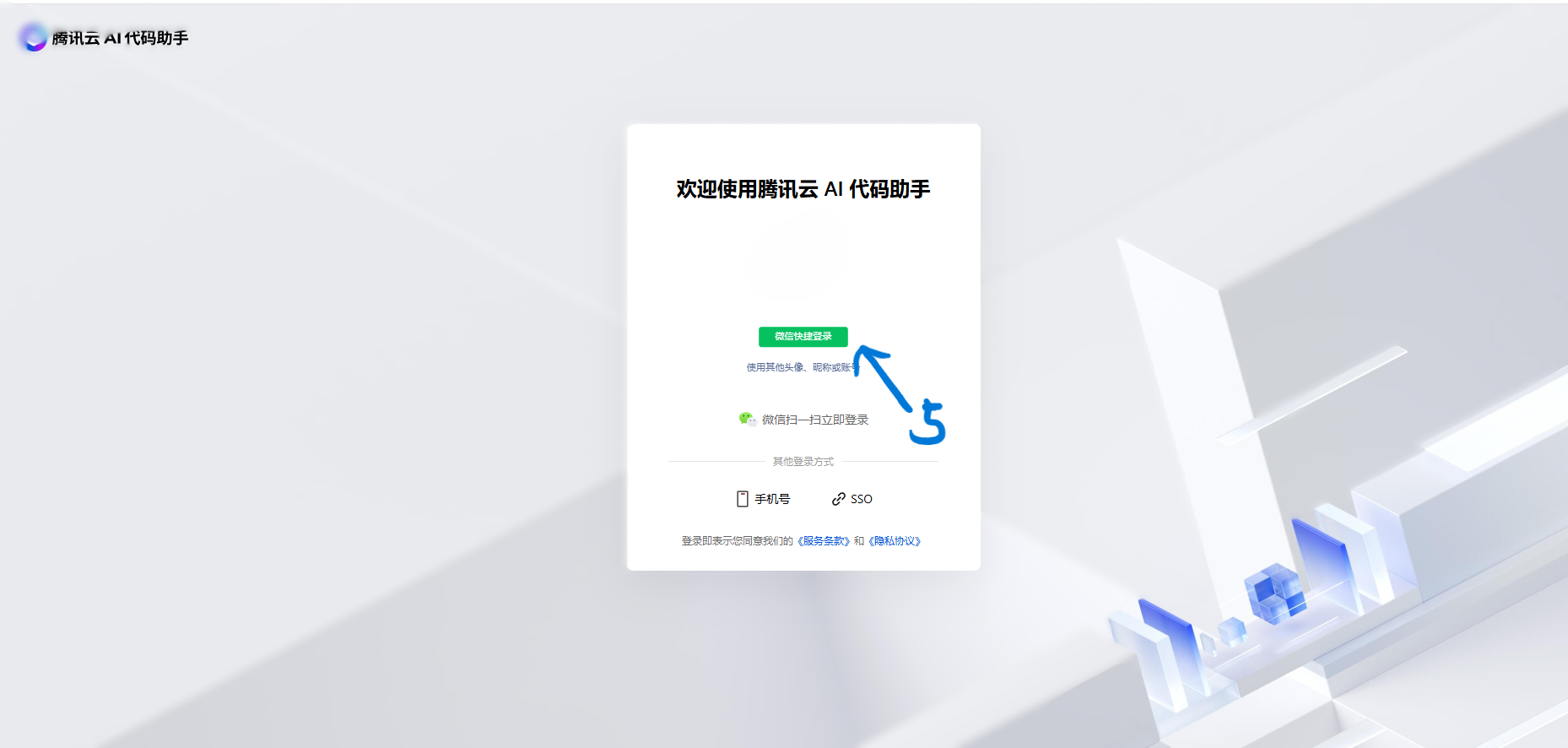
- Step 5: Register and log in to Tencent Cloud.
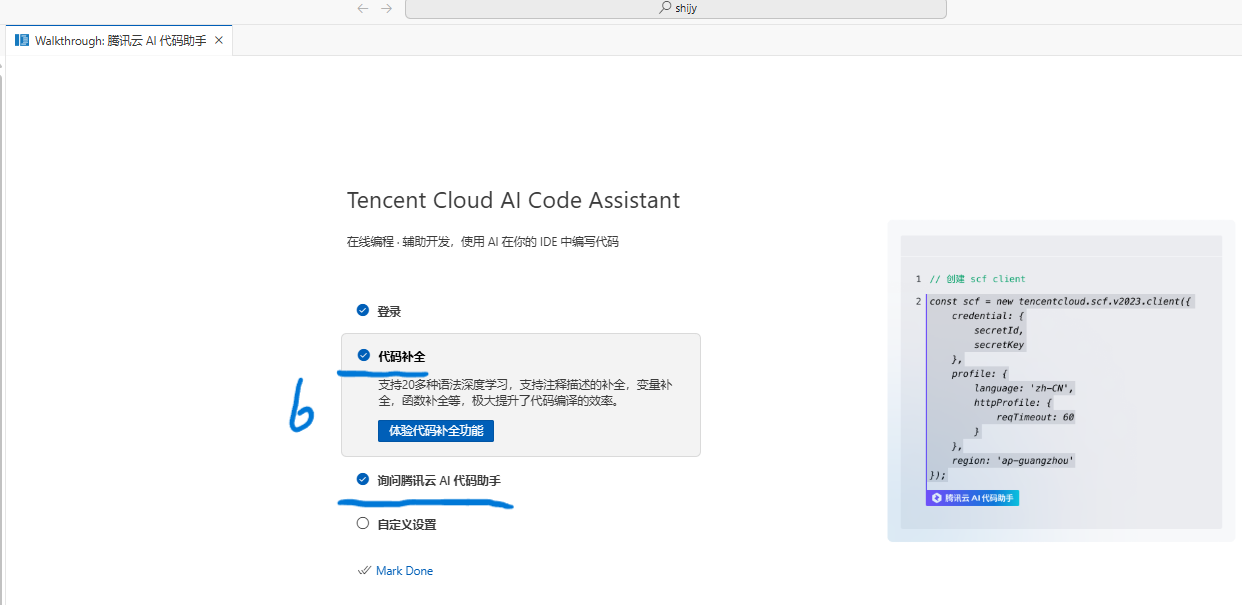
Step 6: Return to the VS Code tab and Enable code completion and AI assistance in VSCode.
Use AI suggestions during coding in VSCode. Suggestions include: Explaining functions, Providing suggestions, Auto-generating comments, Generating test cases, Code reviews and intelligent completion.
For details and more features: https://open-vsx.org/extension/Tencent-Cloud/coding-copilot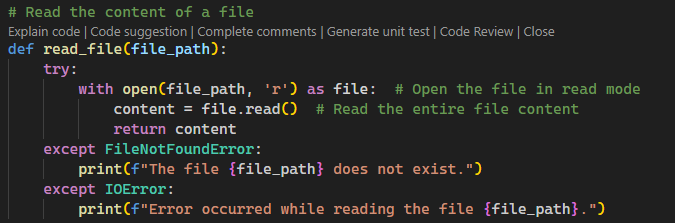
8.5.3.2 Jupyter
A Python/Root interactive environment for code execution and file management.
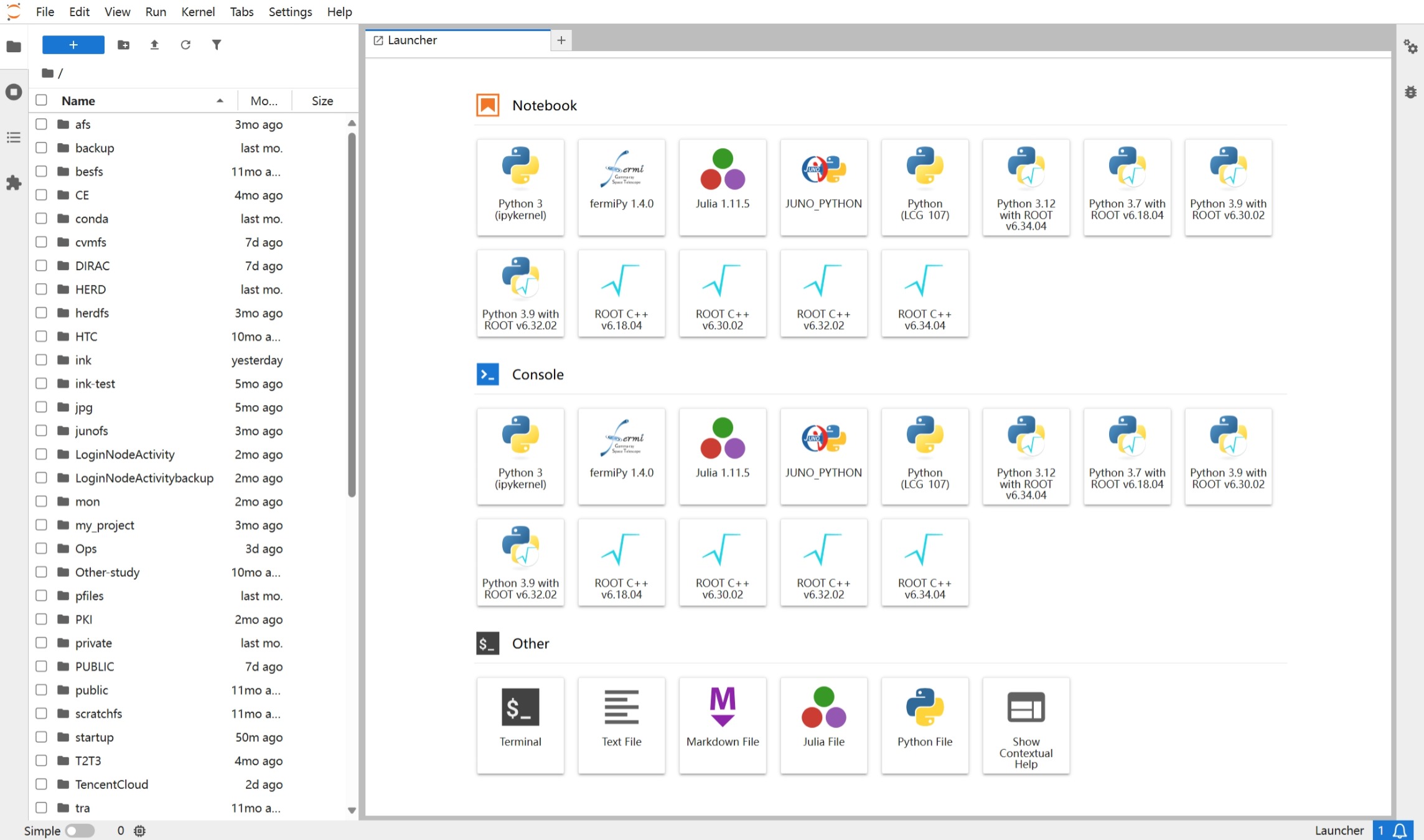
Key Features:
- Left Panel: File browser, command palette, and runtime management.
- Workspace: Multi-tab support for notebooks, documents, and terminals.
- Top Menu: File operations, code execution, and export options (e.g., HTML/PDF).
- Terminal Access: Directly open a terminal from the + menu.
- Text Editor: Built-in editor for code/text files.
Kernel Selection: INK-Jupyter offers a variety of scientific kernels for researchers to choose from. Users can also install custom ipykernels to meet the needs of different analysis scenarios.
The available public kernels include:
| Kernel Name | Description |
|---|---|
| Python 3 (ipykernel) | Default kernel with various scientific Python packages |
| fermiPy 1.4.0 | Kernel with fermiPy 1.4.0 installed |
| Julia 1.11.5 | Kernel with Julia 1.11.5 |
| JUNO_PYTHON | Python kernel configured for the JUNO environment |
| Python (LCG_107) | Python kernel with LCG_107 environment |
| Python 3.12 with ROOT v6.34.04 | Python 3.12 kernel integrated with ROOT 6.34.4 |
| ROOT C++ v6.34.04 | C++ kernel for ROOT 6.34.4 |
If you have additional analysis requirements, you may contact the administrator to request installation.
Installing a Custom Jupyter Kernel (User Scope)
You can install your own Jupyter kernels under ~/.local/share/jupyter/kernels/, either using Python venv or conda environments.
Install kernel by venv
## Installing a Custom Jupyter Kernel (User Scope)

# Create a virtual environment
python3 -m venv ~/venvs/mykernel

# Activate the environment
source ~/venvs/mykernel/bin/activate

# Upgrade pip and install necessary packages
pip install --upgrade pip

# Build your env: pip install something
# pip install ....

# Install ipykernel
pip install ipykernel

# Register the kernel
python -m ipykernel install --user --name mykernel --display-name "Python (mykernel)"
Install kernel by conda
# Download miniconda
curl -LO https://repo.anaconda.com/miniconda/Miniconda3-latest-Linux-x86_64.sh

# Install miniconda, the default path is $HOME/miniconda3
bash Miniconda3-latest-Linux-x86_64.sh

# Prepare a conda environment, change shell.bash to your shell type (e.g. shell.zsh)
eval "$($HOME/miniconda3/bin/conda shell.bash hook)"

# Create a conda environment. You can choose any name and any version of python you want
conda create -n myconda python=3

# Activate the environment
conda activate myconda

# Upgrade pip and install necessary packages
pip install --upgrade pip

# Build your env: pip install something
# pip install ....

# Install ipykernel
pip install ipykernel

# Register the kernel
python -m ipykernel install --user --name myconda --display-name "Python (myconda)"
8.5.3.3 RootBrowse
RootBrowse is a ROOT file browser tool that supports web-based file viewing, upload, download, and deletion. It also allows code execution and result visualization directly on the web interface.
The application utilizes the built-in ROOT::RBrowser() method from the latest ROOT software to launch a web-based RootBrowse. Compared to the legacy TBrowse (implemented via X11 and C++ GUI libraries), it retains similar usage patterns while significantly improving responsiveness and adding new features.
Note:
- RootBrowse uses one-time links. Refreshing or reusing the link address will fail. Users must click Connect in the INK Jobs interface to generate a new link.
- Links expire after 1 minute; repeated clicks within this interval may also fail.
- This feature is available only in the new ROOT version and does not support CentOS7 systems.
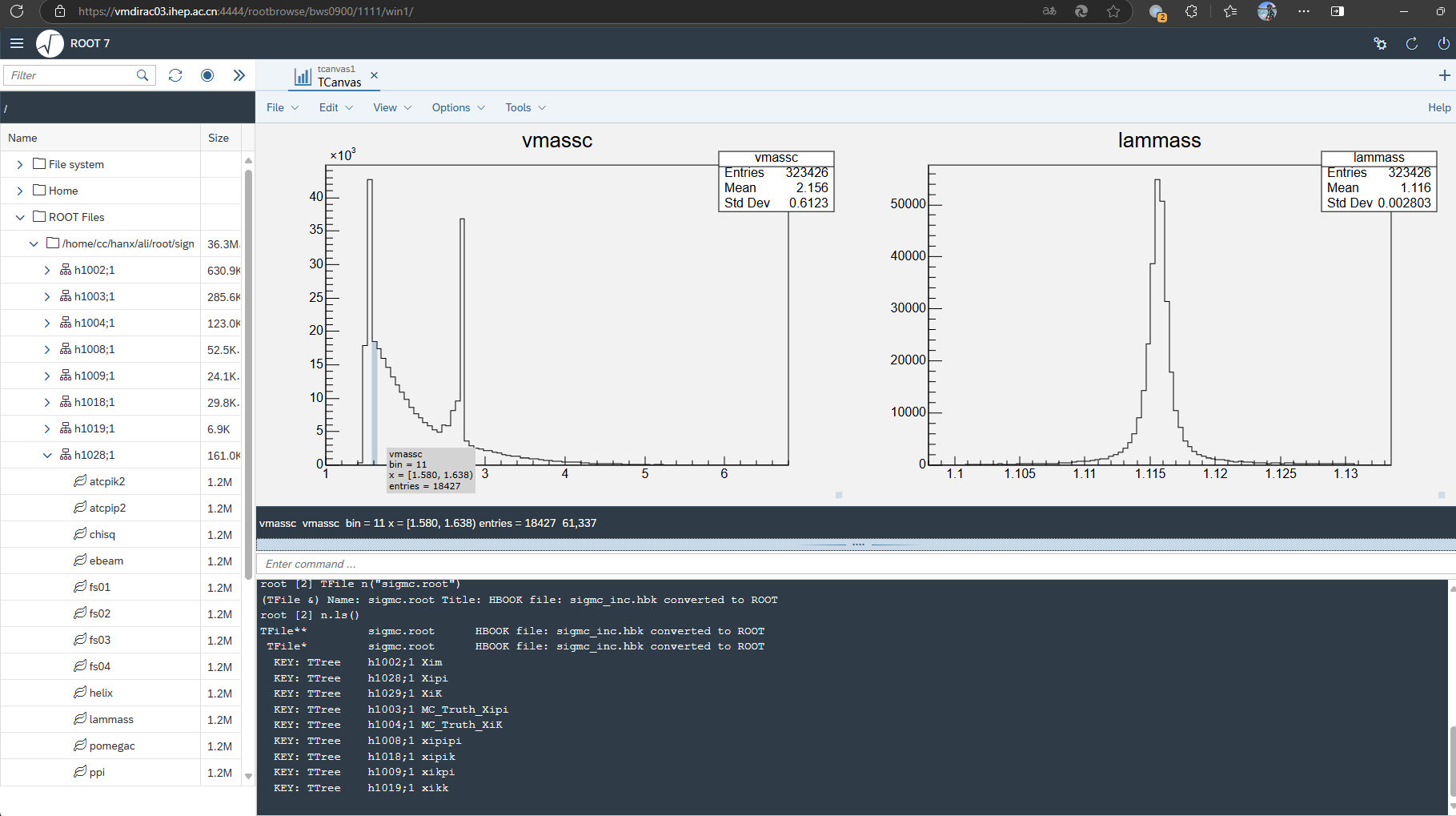
The RootBrowse application provides a web interface for browsing file systems and ROOT files. Users can open ROOT files, explore directory structures, and inspect objects.
Interface Details
- Sidebar: Displays the directory tree of the file system or ROOT file contents, enabling navigation through data structures. Users can select directories, files, or objects for further operations.
- Toolbar: Contains shortcut buttons for common actions (e.g., open file, save, refresh view).
- Workspace: Displays selected data objects with multiple view modes, including numerical tables, histograms, graphs, and other visualizations.
- Properties Panel: Shows detailed metadata and properties of selected objects, allowing modifications and settings adjustments.
Features
- Multi-File Support: Open and browse multiple ROOT files simultaneously, with seamless switching and data comparison.
- Dynamic Visualization: Interactive charts and visualization tools for real-time data adjustments. Supports common types like histograms, scatter plots, and curve plots.
- Scripting & Analysis: Integrated ROOT scripting capabilities for direct code execution and data analysis. Compatible with modern interfaces like RDataFrame.
- Search & Filtering: Advanced search functionality to quickly locate specific objects or datasets. Filter by metadata or content.
8.5.3.4 VNC
Web VNC is a remote desktop protocol that allows viewing files on a web page. It enables running code and viewing results by GUI directly in the web interface.
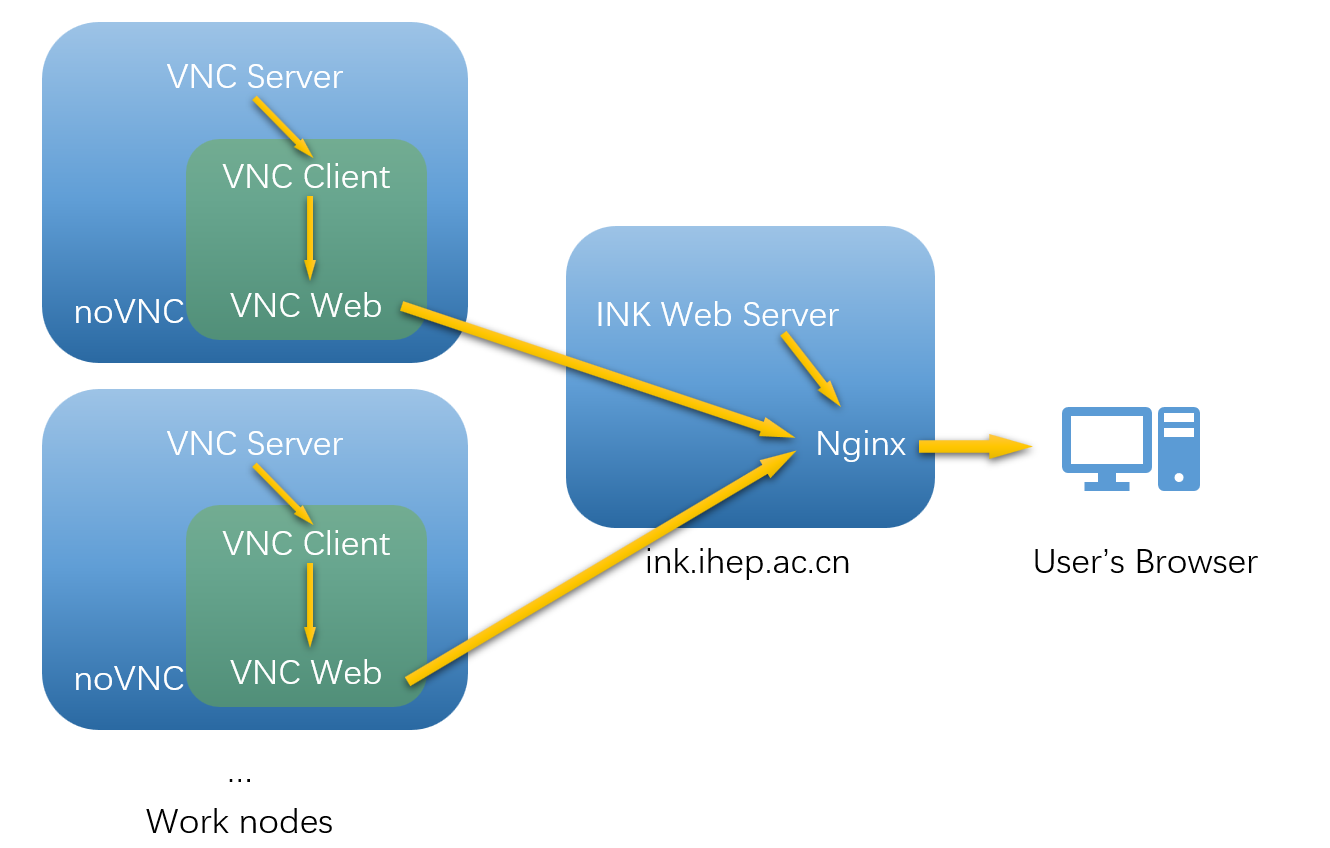
This application is based on a VNC Server service running on compute nodes, with noVNC acting as the client to connect and forward the service via a web server. The architecture is shown below:
Tips:
- The noVNC sidebar can be used to transfer clipboard content.
- Some browser extensions may intercept keystrokes. It is recommended to disable them on
ink.ihep.ac.cn.
To install a desktop application, contact the administrator and provide details including the purpose, installation method, and other relevant information.
8.5.3.5 OpenClaw
OpenClaw is a web application for interactive programming, code understanding, and assisted analysis. It runs on compute nodes and provides an agent-like interface in the browser, suitable for reading code, writing scripts, executing commands, and working with local large-model-assisted tasks.
OpenClaw is started in the same way as other INK interactive applications: click the OpenClaw icon in the Application section on the homepage to submit a job, wait until the job becomes connectable in the Jobs list, and then click Connect to open the interface.
First Use and Model Configuration
When OpenClaw is used for the first time, you need to configure the model service first. The pop-up menu on the frontend usually contains the following items:
- Template: Select a preset model-service configuration. If the user has already saved a configuration before, the related template will be moved to the first position for easier reuse.
- Base URL: The endpoint address of the model service. OpenClaw connects to the selected provider through this address.
- API Key: The credential required to access the model service, used for authentication.
- API Name: The API protocol type used by the model service, such as
openai-completionsoranthropic-messages. - Model ID: The actual model name or identifier to use, for example
hepai/deepseek-v3.2. - Mount experiment data: Whether to mount experiment data directories into the job.
After the user confirms the configuration, the system synchronizes the model settings to the personal OpenClaw workspace. When OpenClaw is started again later, the system will preferentially load the user's last valid saved configuration.
IHEP Local Customization and Data Security
OpenClaw in INK is specially adapted for the IHEP environment, with the following main features:
- Several preset templates are provided for quickly selecting commonly used model services.
- Previously saved user configurations are displayed with higher priority in the template list, reducing repeated input.
- The OpenClaw connection URL uses token-based authentication. After entering through Connect in INK, users generally do not need to complete device pairing manually.
- User settings are stored in the OpenClaw directory under the personal scratch workspace and can be reused by later jobs.
When Mount experiment data is disabled, users may use either local models or external model services. When this option is enabled, the system allows only IHEP local models, in order to prevent experiment data from being transmitted to external model services. The current local-model pattern is generally:
Base URL = https://aiapi.ihep.ac.cn/apiv2Model IDstarts withhepai/
If experiment data mounting is enabled but the configured model does not satisfy the above conditions, the system will reject the configuration.
Usage Recommendations
- If you need to process experiment data, internal code, or other sensitive content, it is recommended to use IHEP local models and enable Mount experiment data.
- If you are only doing general code generation, text organization, or processing public information, you may choose external model services as needed.
- After the model configuration is changed, the new configuration will continue to take effect in later OpenClaw sessions.
- If the job has started but is not connectable yet, use Refresh on the Jobs page and wait until Connect appears.
8.5.4 FAQ
Job Submission Failure
If a user's
rc(.bashrc,.tcshrc) file contains blocking input or similar commands,inkmay fail to submit jobs or create files under the user's identity.Solution: Add a safeguard in the
rcfile to exit when the session is non-interactive. Example code for each shell:BASH
[[ $- != *i* ]] && returnZSH
  if [[ ! -o interactive ]]; then
      return
  fi
TCSH/CSH
  if (! $?prompt) then
      exit
  endif
Kerberos error after initial login:

Solution: Click the avatar at the top right corner to log out, close the browser and log in again.